Visual user guide

Start with your first run.

Follow the onboarding flow first, then explore the app screens and features.

First run

Set up your practice in four steps.

The first-run flow saves your bead count, daily pace, and visual style before you begin counting.

  1. 01
    Start with a welcome

    Tap Get started to personalize the app, or choose to set it up later.

  2. 02
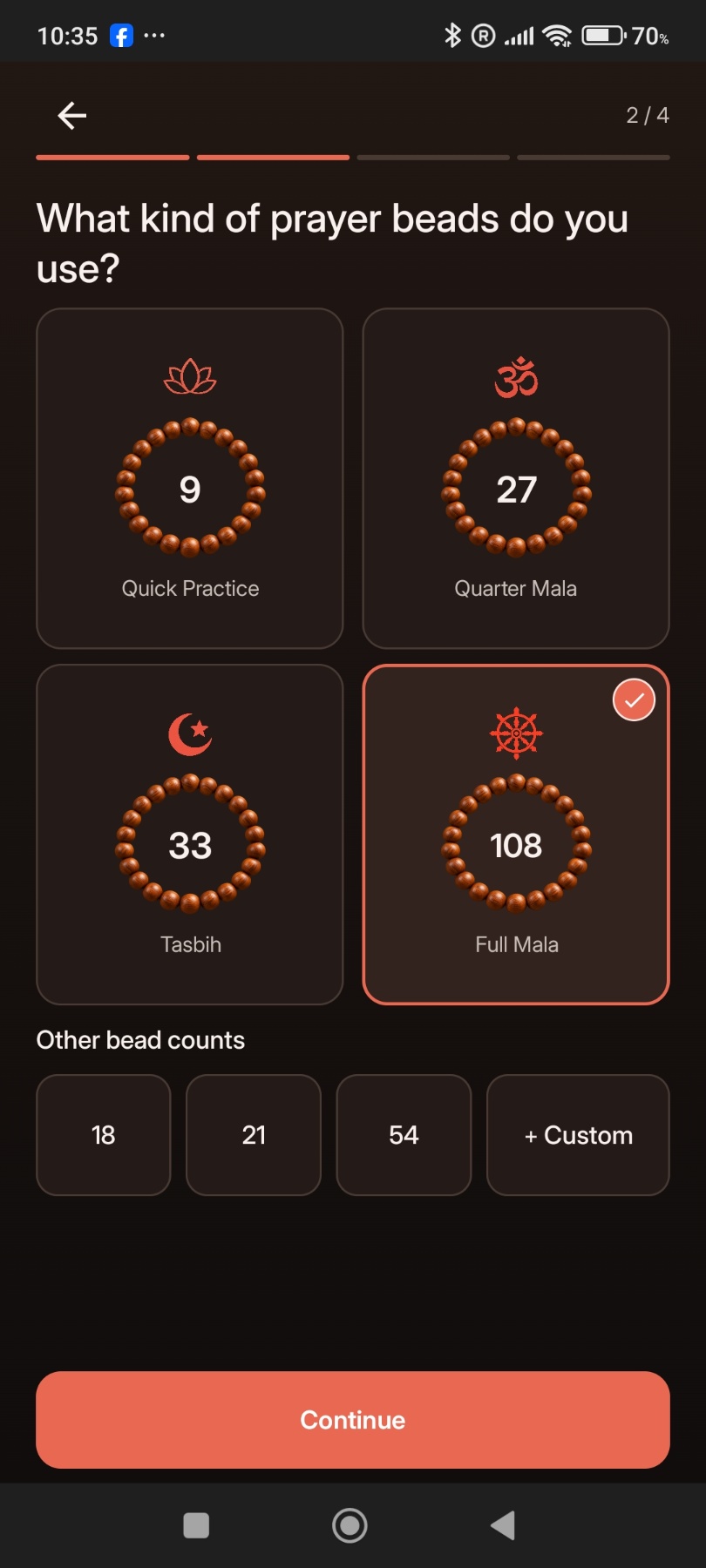
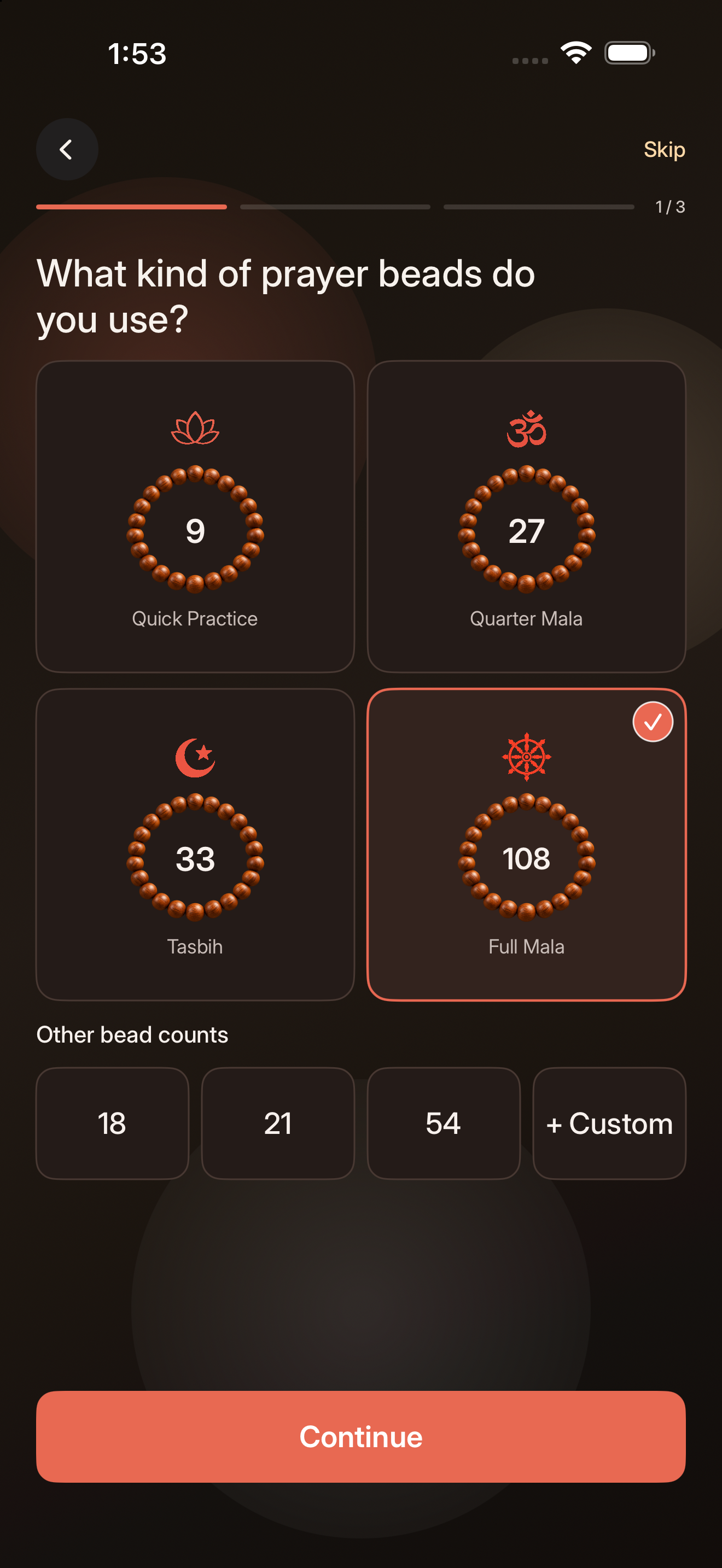
    Choose your bead count

    Pick a suggested strand length or enter a custom count.

  3. 03
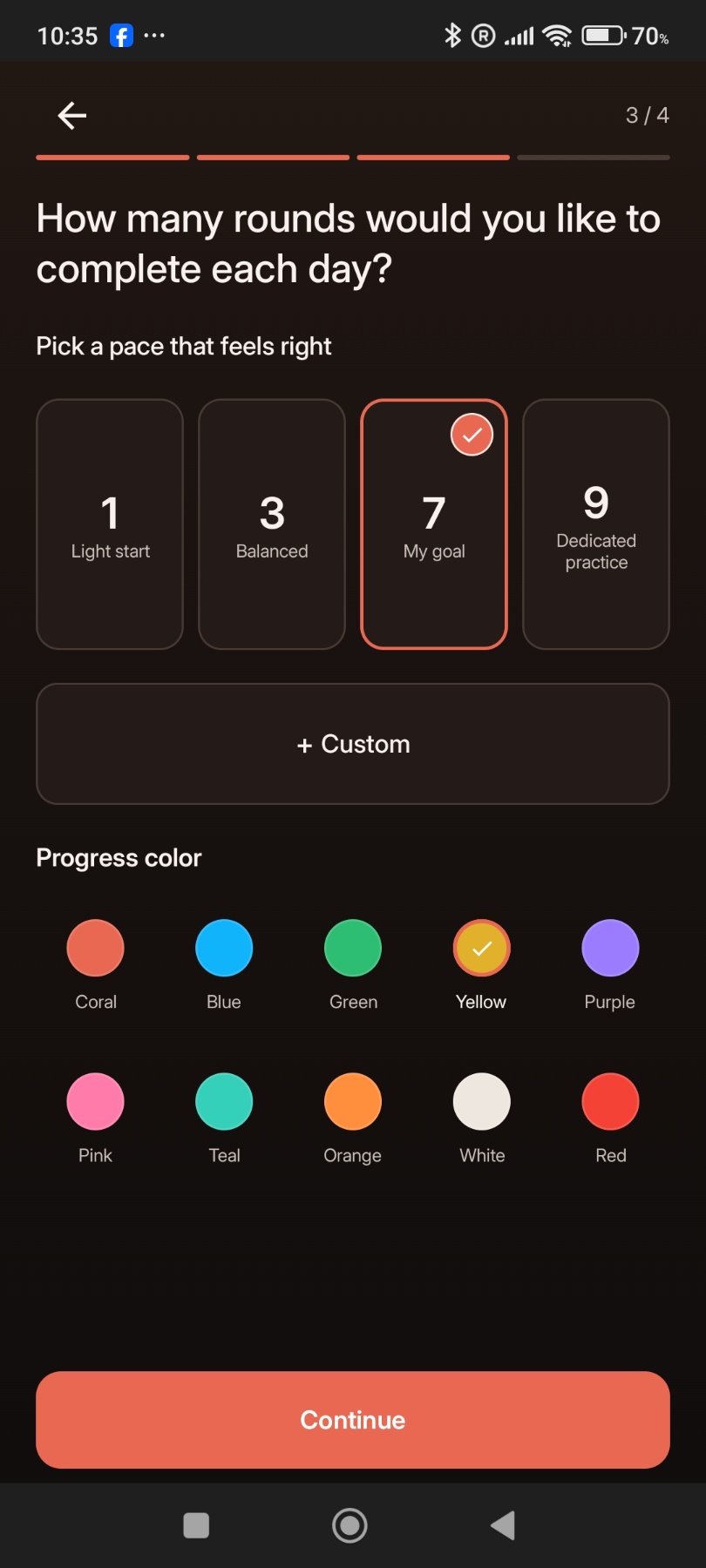
    Set a daily pace

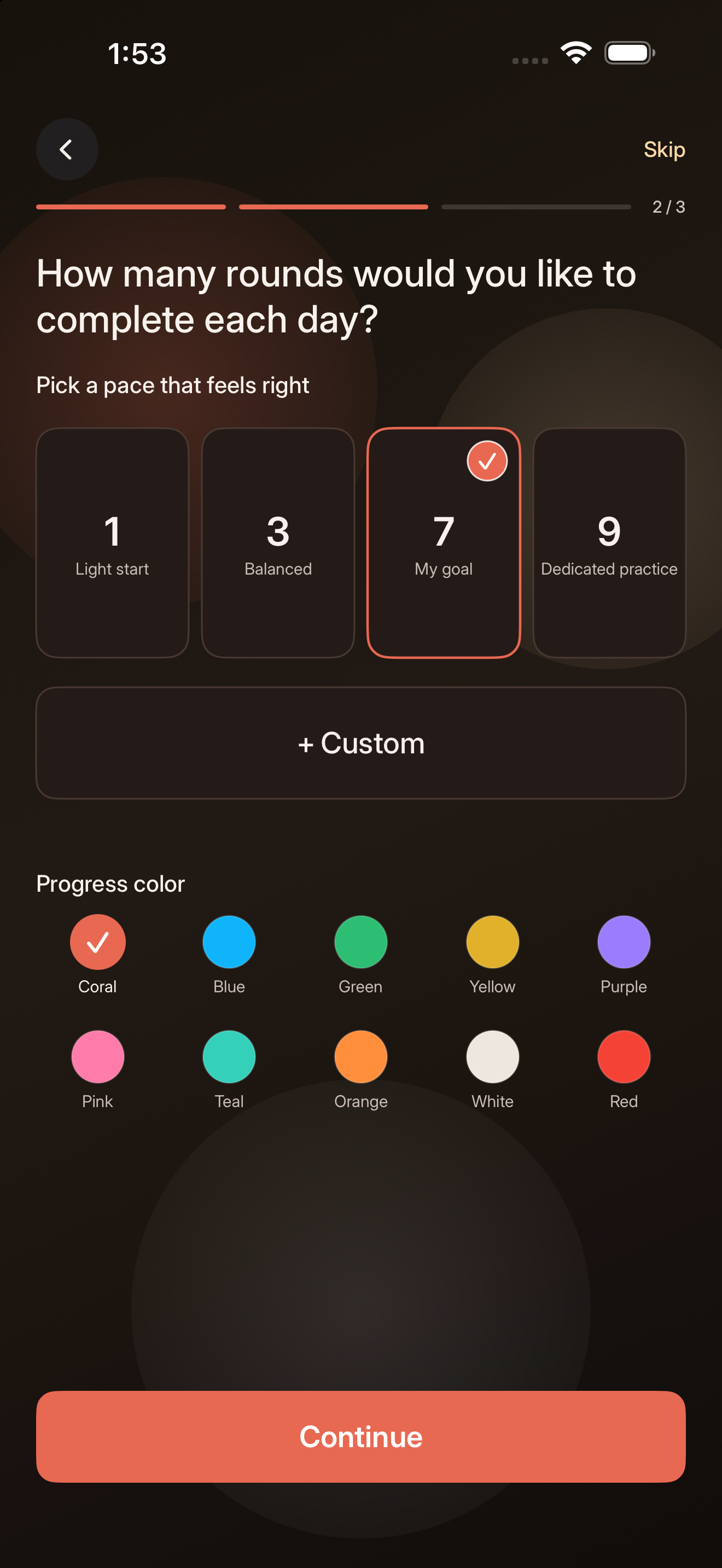
    Choose how many rounds to aim for each day and select a progress color.

  4. 04
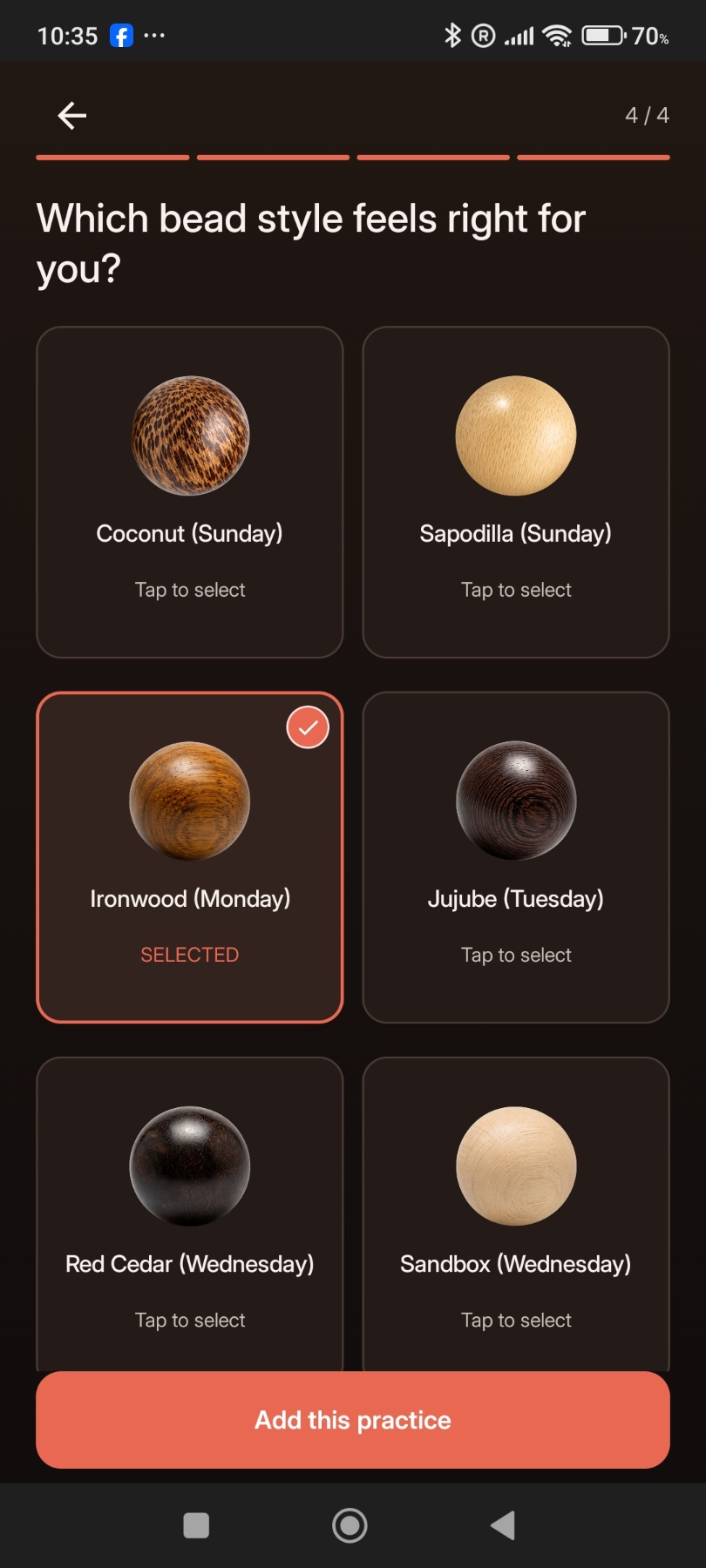
    Choose your bead style

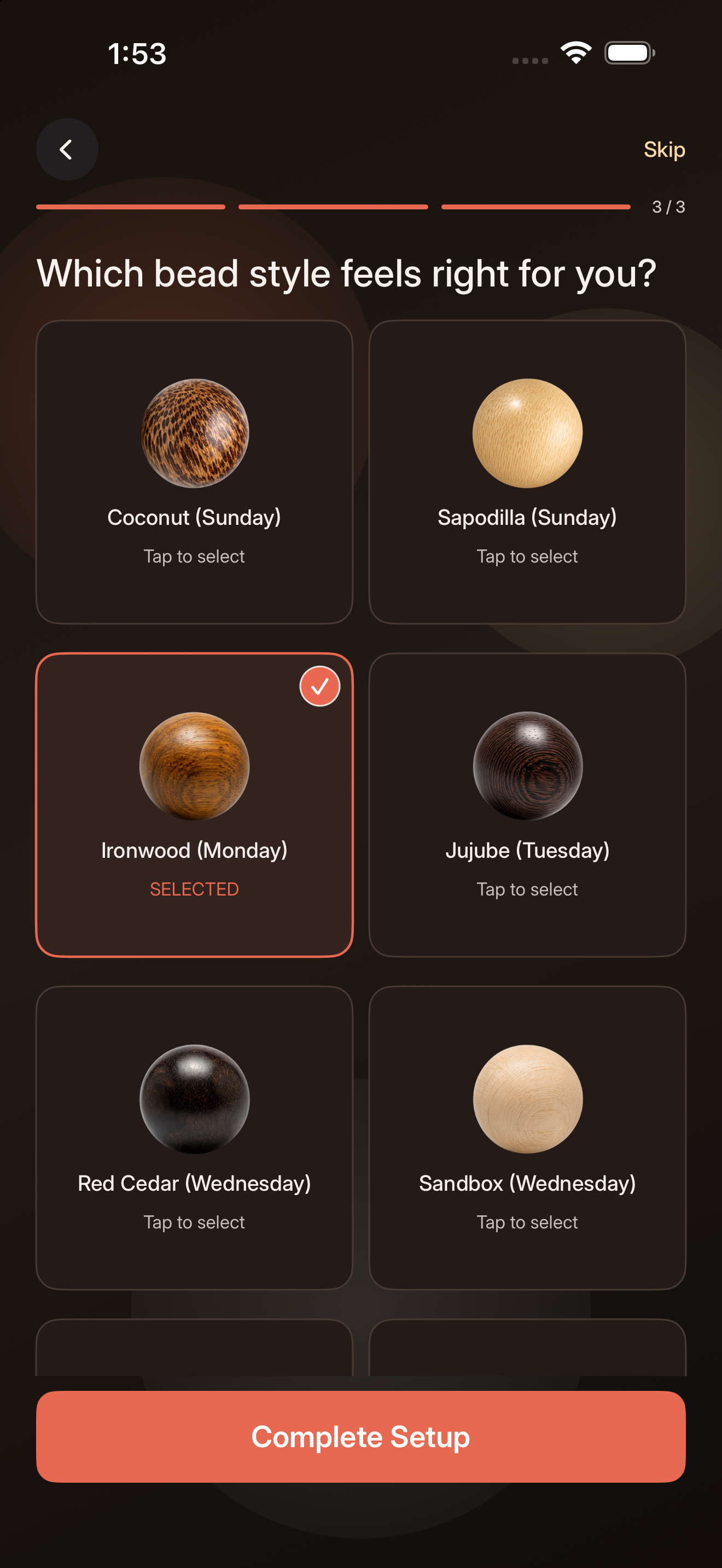
    Select the look you prefer, then complete setup.

Review, then start countingCheck your setup summary and tap Start counting. You can adjust these choices later in Settings.
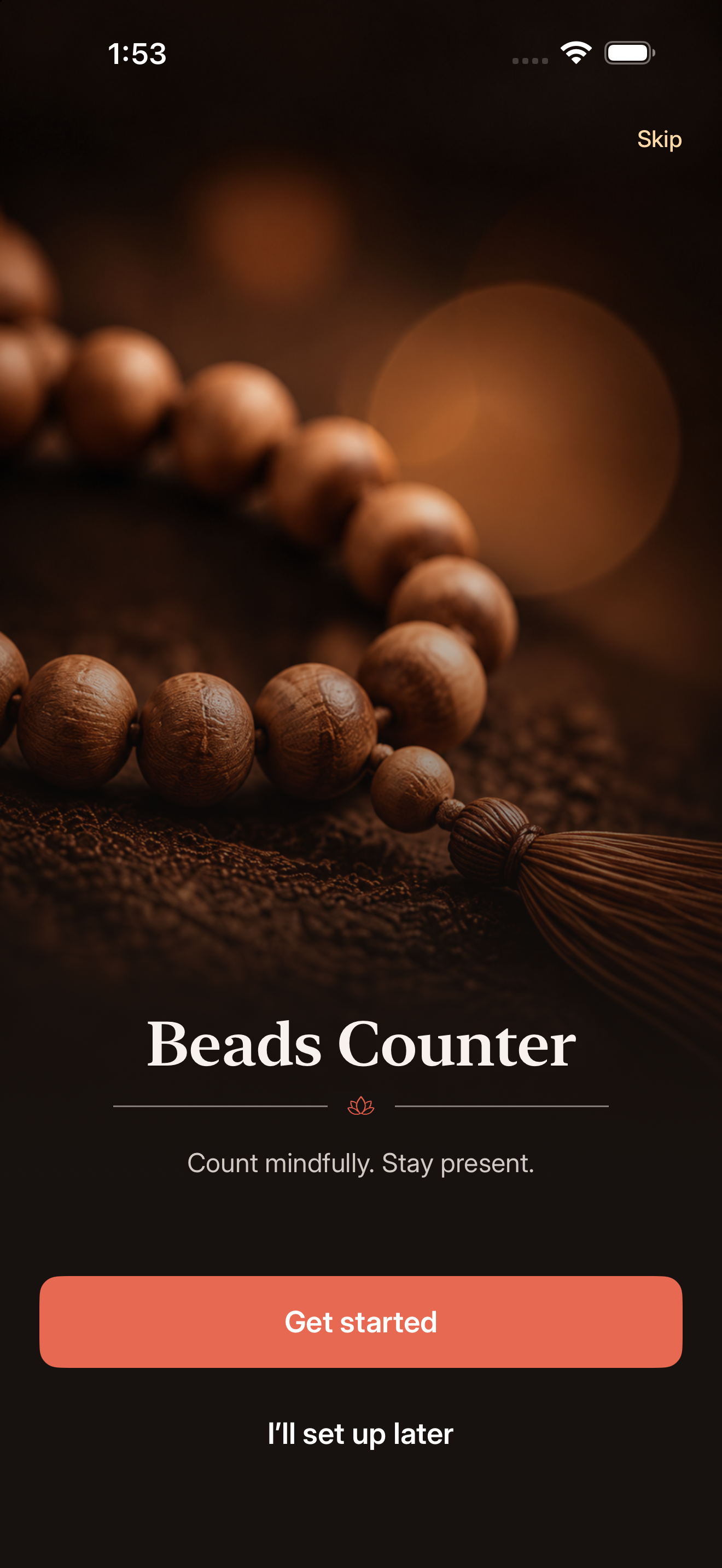
Welcome screen in the Beads Counter onboarding
01Welcome
Bead count choices in the Beads Counter onboarding
02Bead count
Daily target choices in the Beads Counter onboarding
03Daily goal
Bead style choices in the Beads Counter onboarding
04Bead style
Your choices appear in a final summary before the first count.
Getting started

Start with one meaningful target.

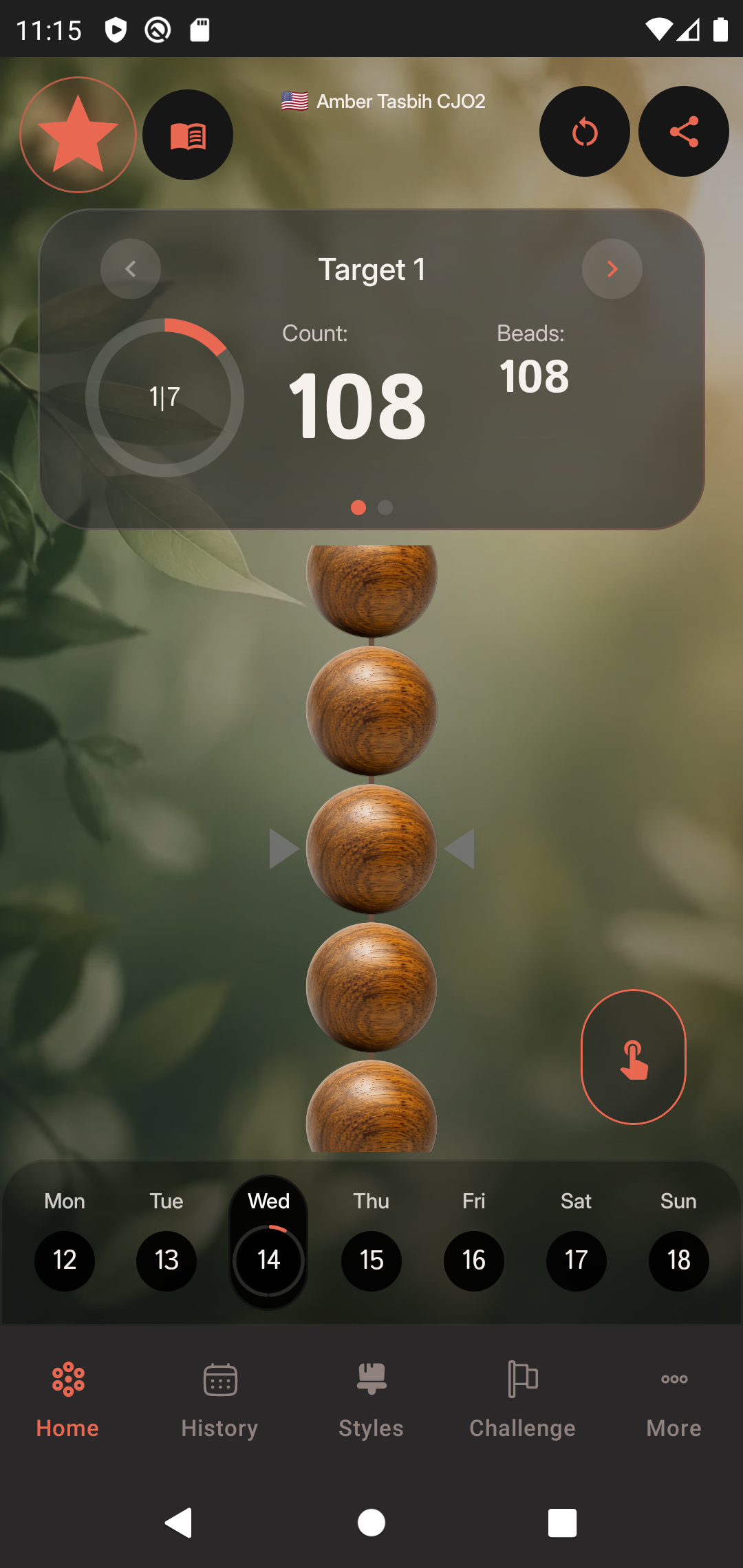
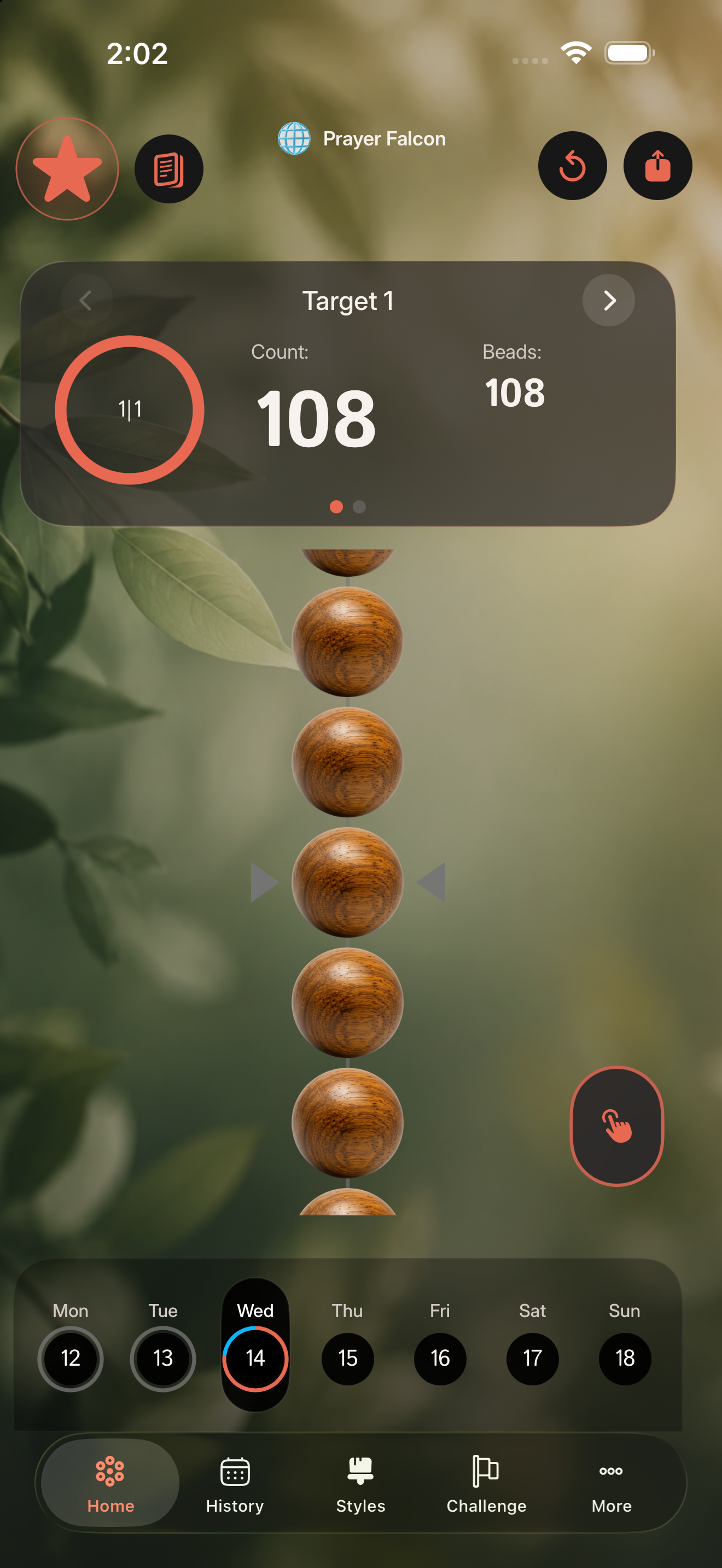
Choose the practice you want to count today, then use the home screen to see target progress, bead count, challenge progress, and the current day.

  1. Open HomeReview the selected target and today’s progress.
  2. Check the journeyUse the bottom navigation to move between history, styles, challenge, and more.
iOS home counter screenAndroid home counter screen

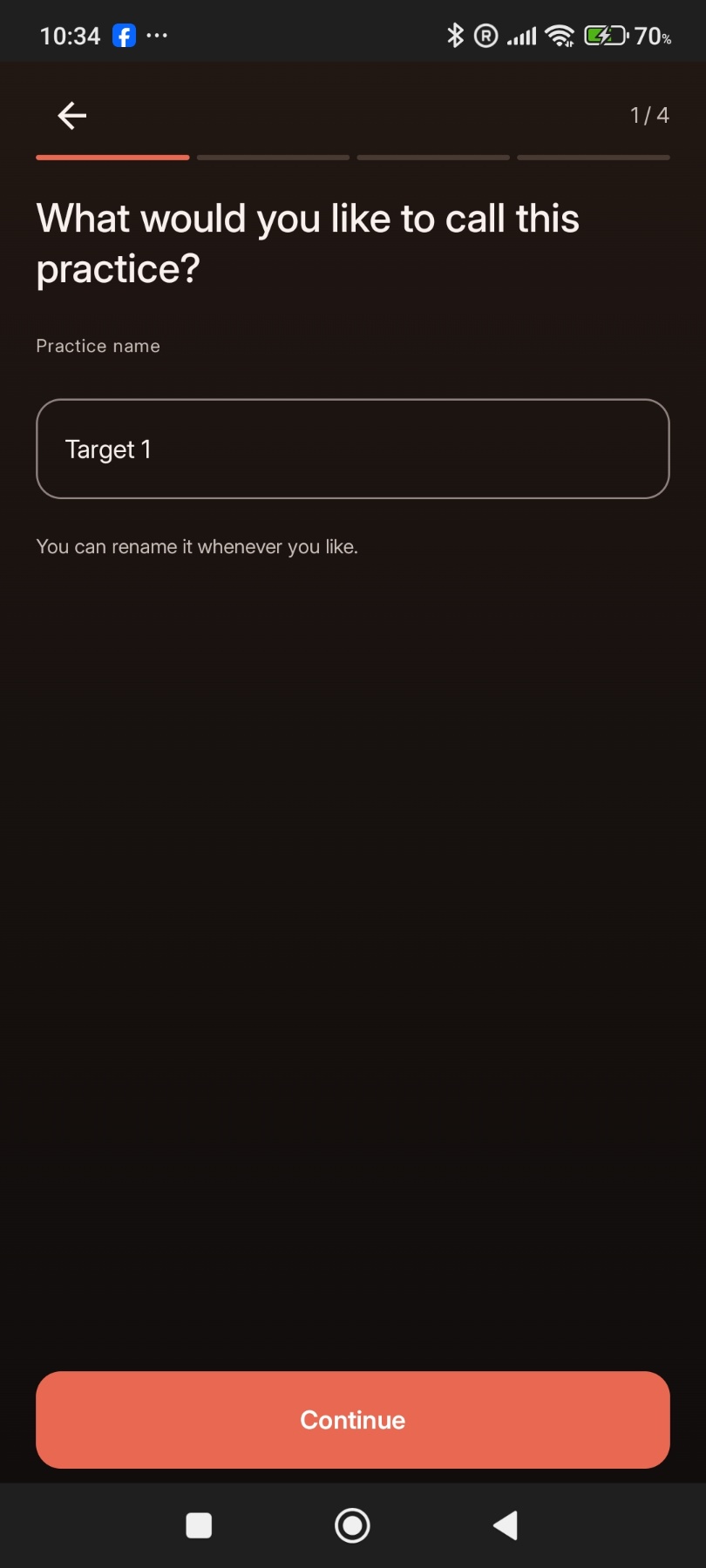
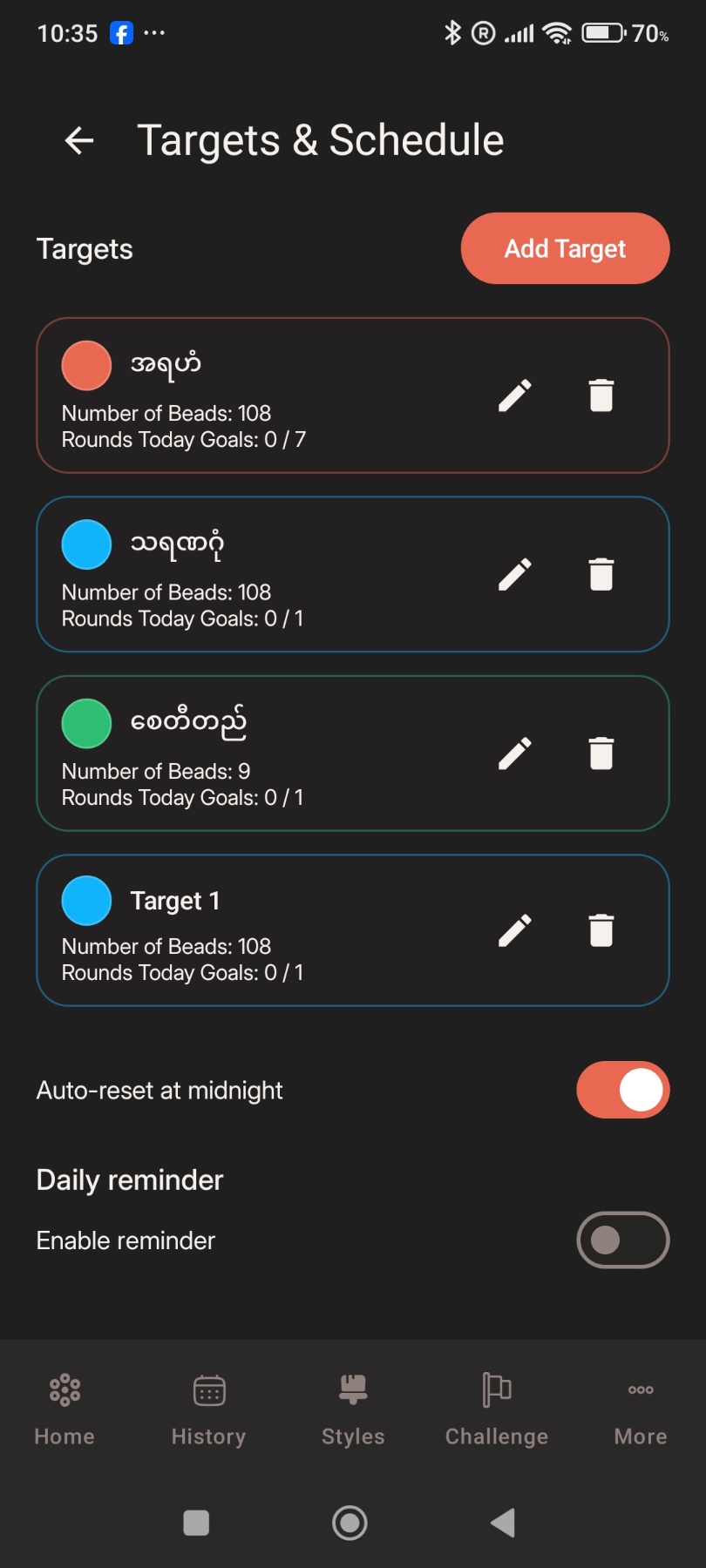
Android · Add Target

Add a practice from name to schedule.

Open Targets & Schedule, tap Add Target, and follow the four setup screens. Your new practice then appears in the target list.

Daily and round goals

Make completion clear.

Daily goals help you return consistently. Round goals keep the bead count understandable inside each target.

  1. Set the goalChoose the daily or round count that matches your practice.
  2. Complete the dayFinished goals feed the streak and level journey.
Daily progress and goals screenDaily progress and goals screen

Counting beads

Tap or pull through the strand.

The counting screen is built for focus. Use the main count area or bead gesture and keep sound/vibration feedback simple.

  1. Count calmlyAdd one count at a time without leaving the practice screen.
  2. Reset carefullyOnly reset when you want to clear the active target count.
iOS bead counting screenAndroid bead counting screen

Streaks

Return daily and see the record.

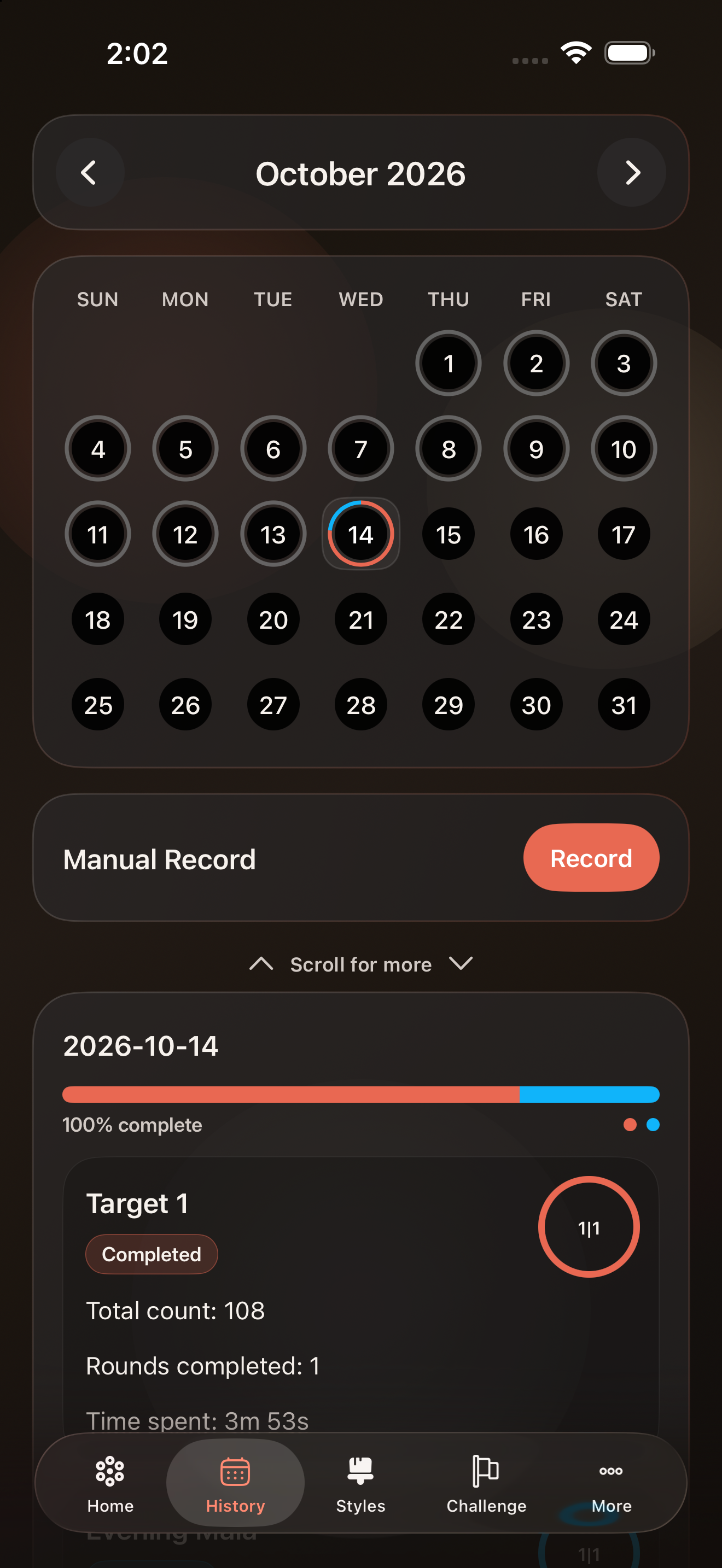
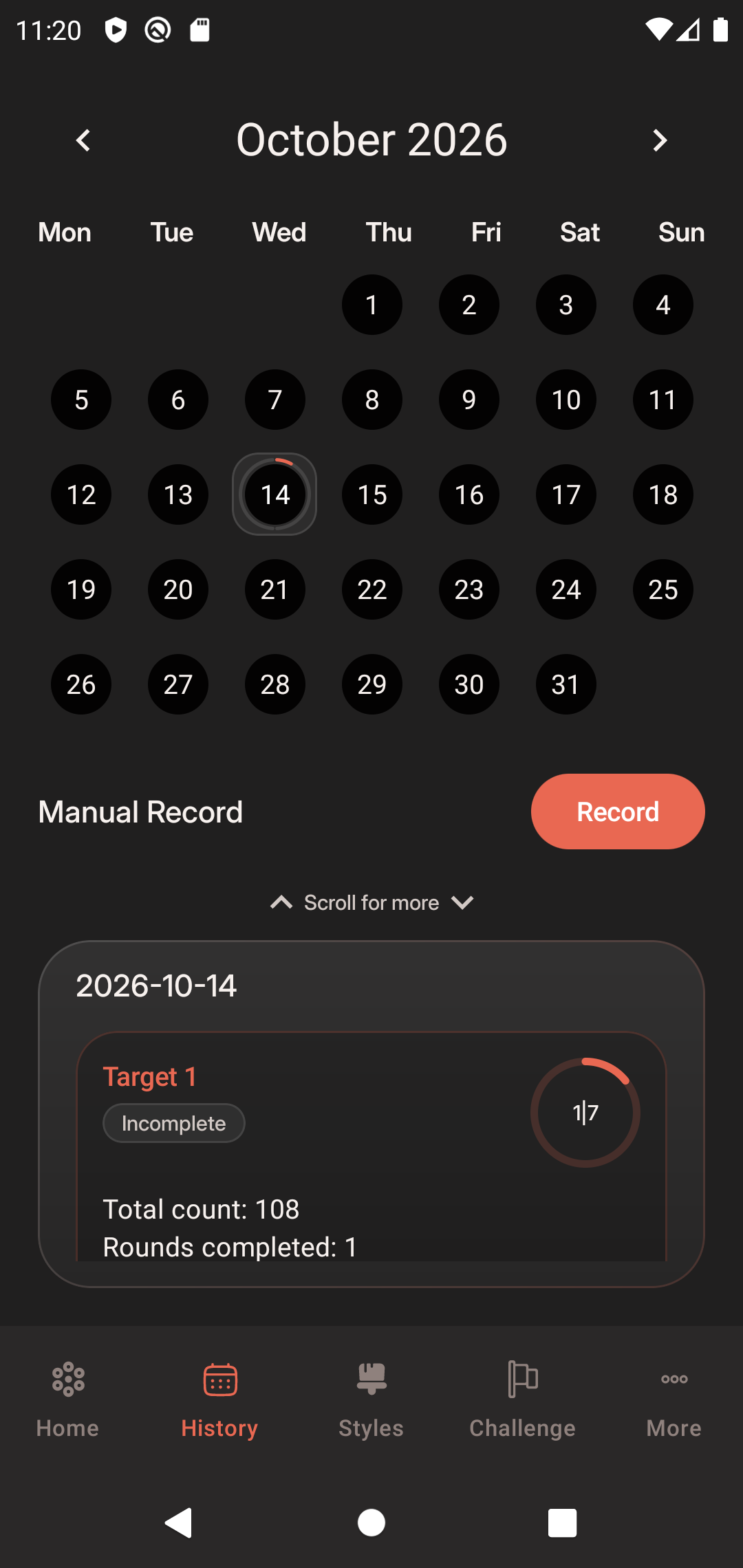
History turns repeated practice into a visible pattern. Use it to review completed days and keep the journey steady.

  1. Open HistoryReview completed days and progress patterns.
  2. Protect streaksComplete goals on more days to grow your level.
iOS daily progress and streak screenAndroid daily progress and streak screen

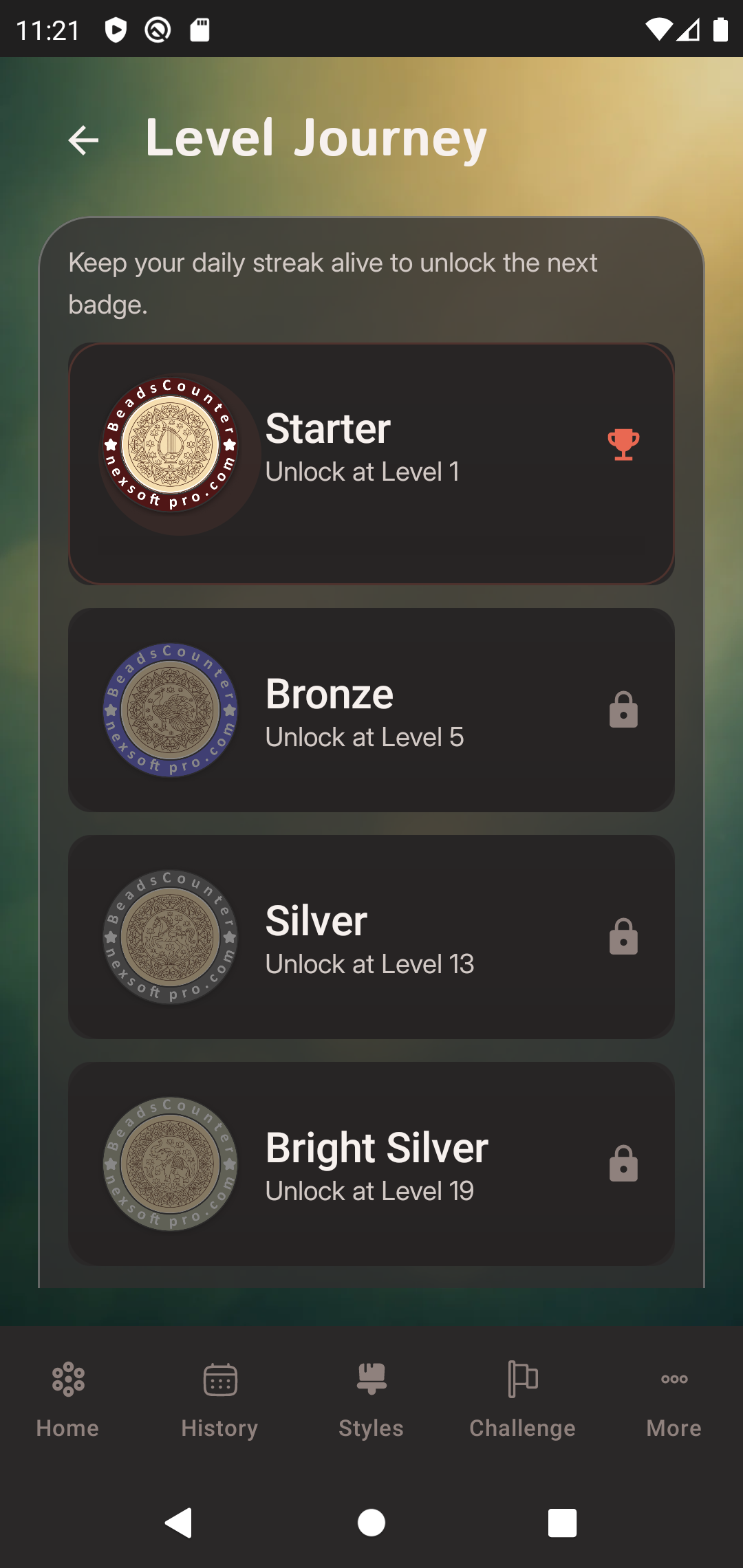
Level Journey

Progress grows with consistency.

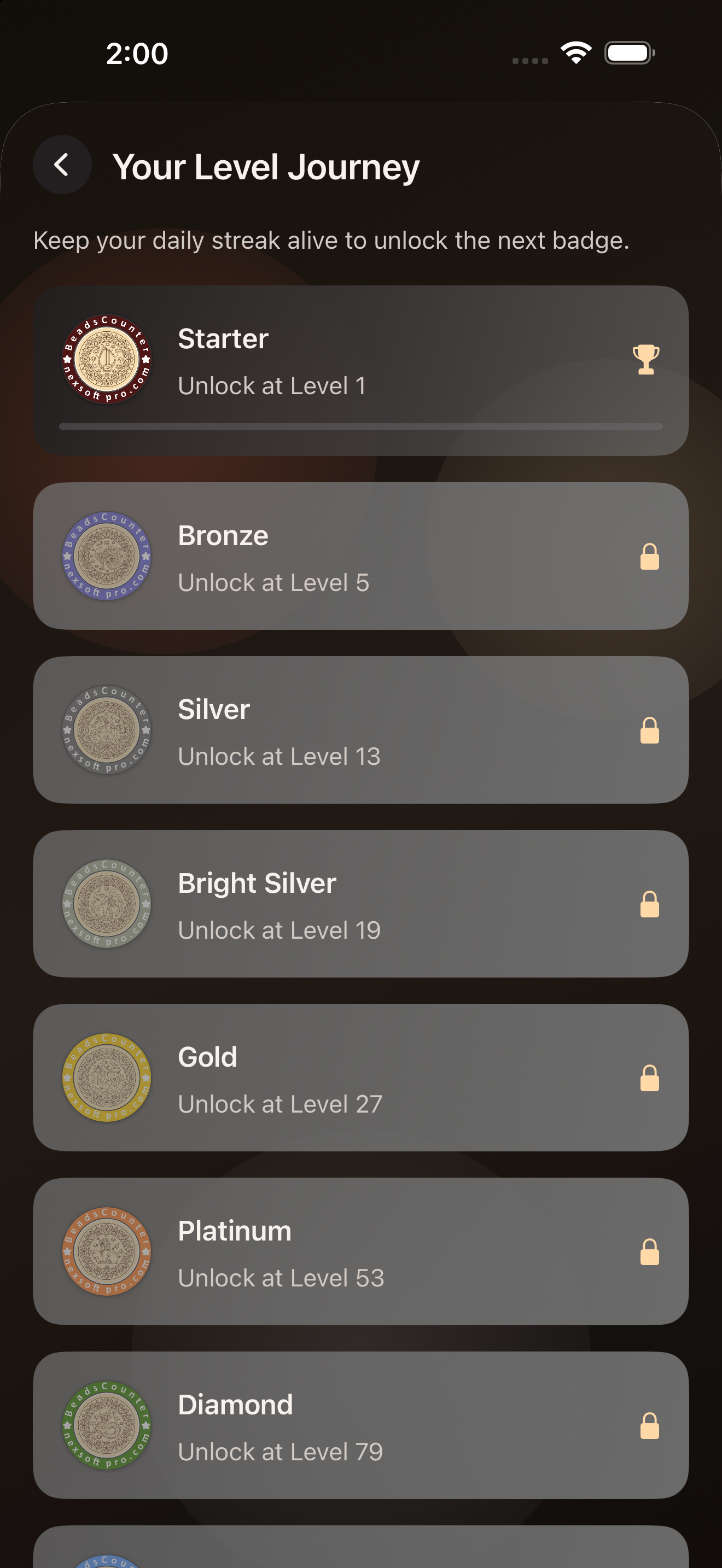
Levels are based on completed streak progress. As the level rises, the next badge stage becomes reachable.

  1. Complete goalsDaily completions add to your journey.
  2. Reach stagesStarter through Legend marks long-term progress.
iOS level journey screenAndroid level journey screen

Badges

Stages are visible milestones.

Badge artwork gives each stage a clear identity and makes progress easier to recognize at a glance.

  1. Unlock naturallyBadges follow your level stage.
  2. Share progressUse achievement visuals when you want to show a milestone.

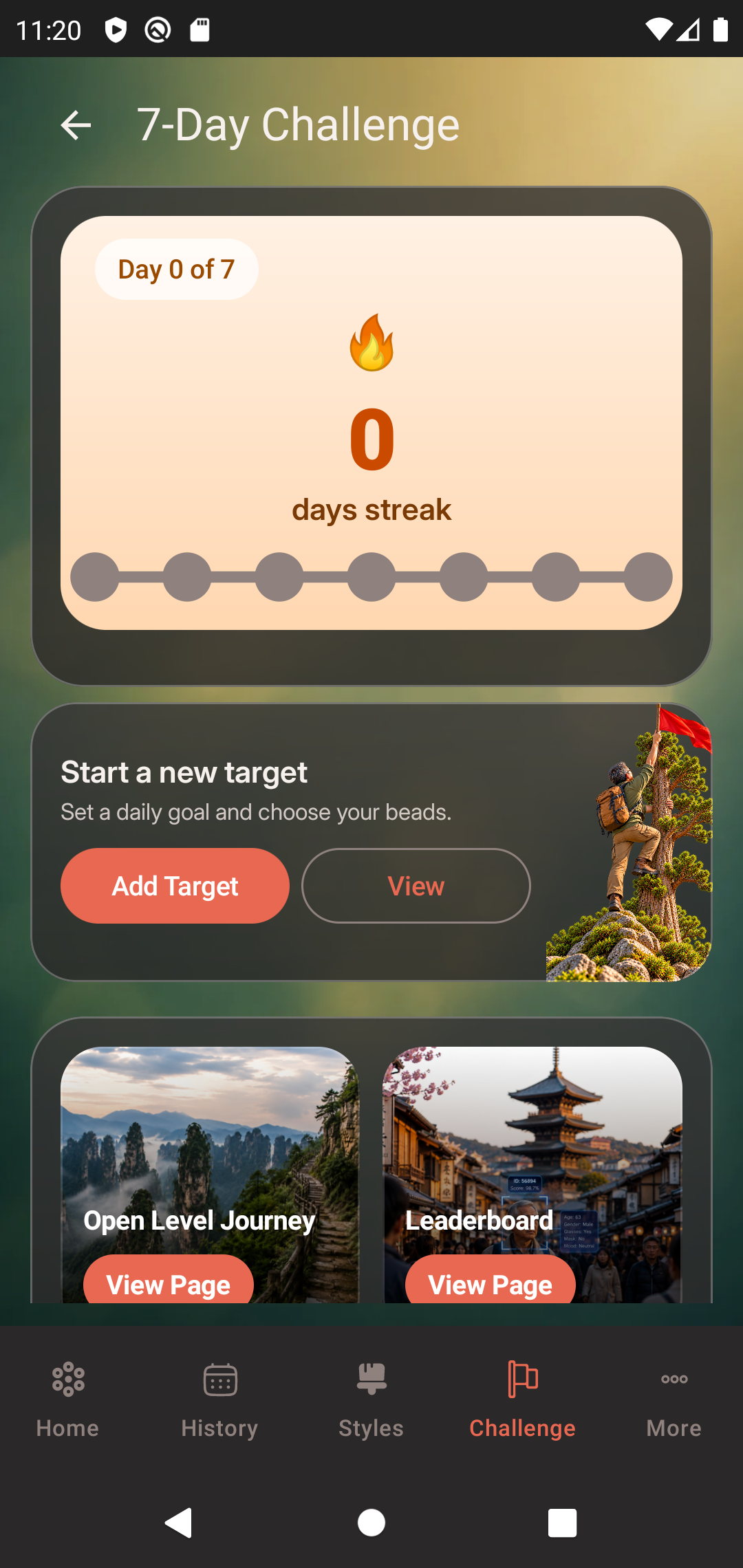
Challenges

Give the week a clear shape.

Challenges encourage users to continue practice without making the app feel competitive or noisy.

  1. Review challengeCheck the challenge tab for the current progress.
  2. Continue practiceComplete daily work to keep challenge progress moving.
Challenges and streak journey screen

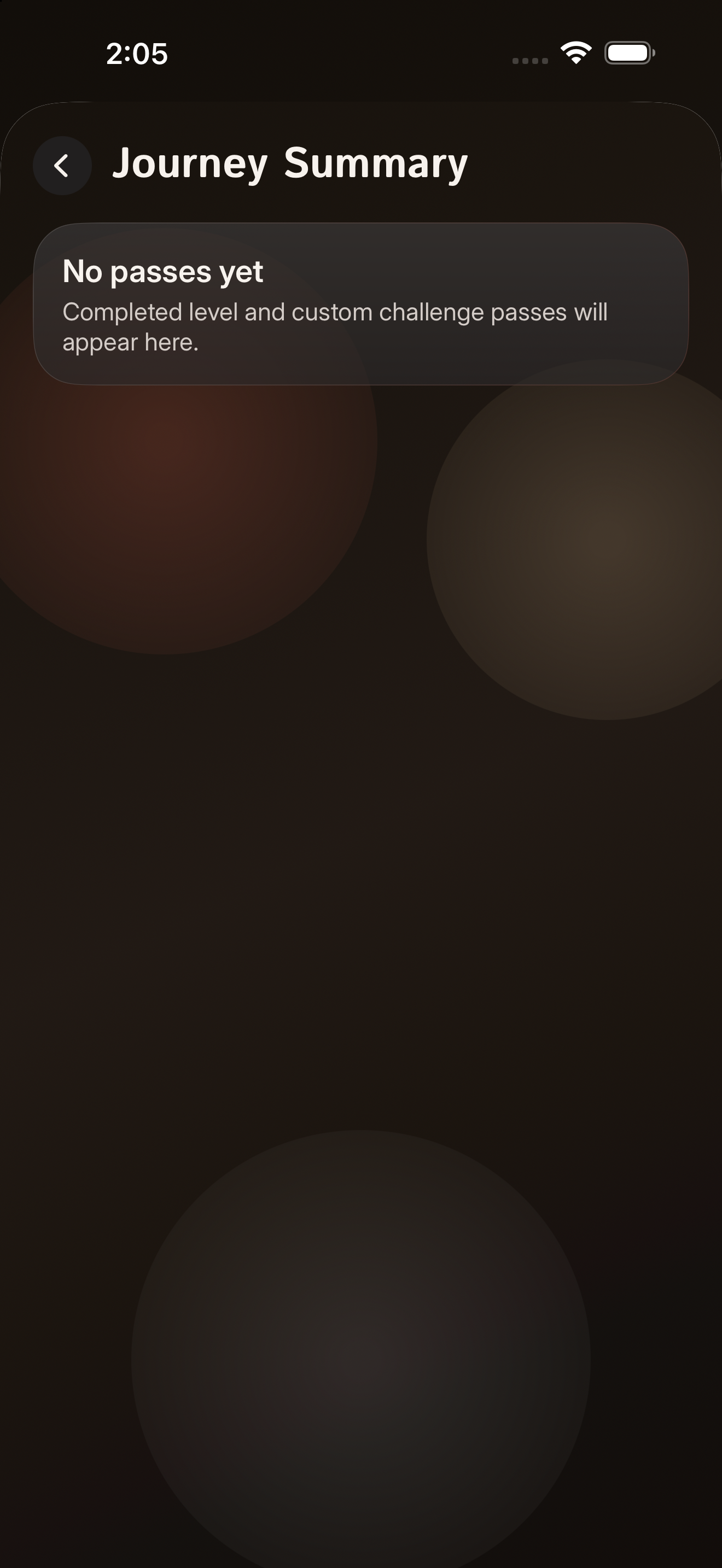
Journey Summary

See practice over time.

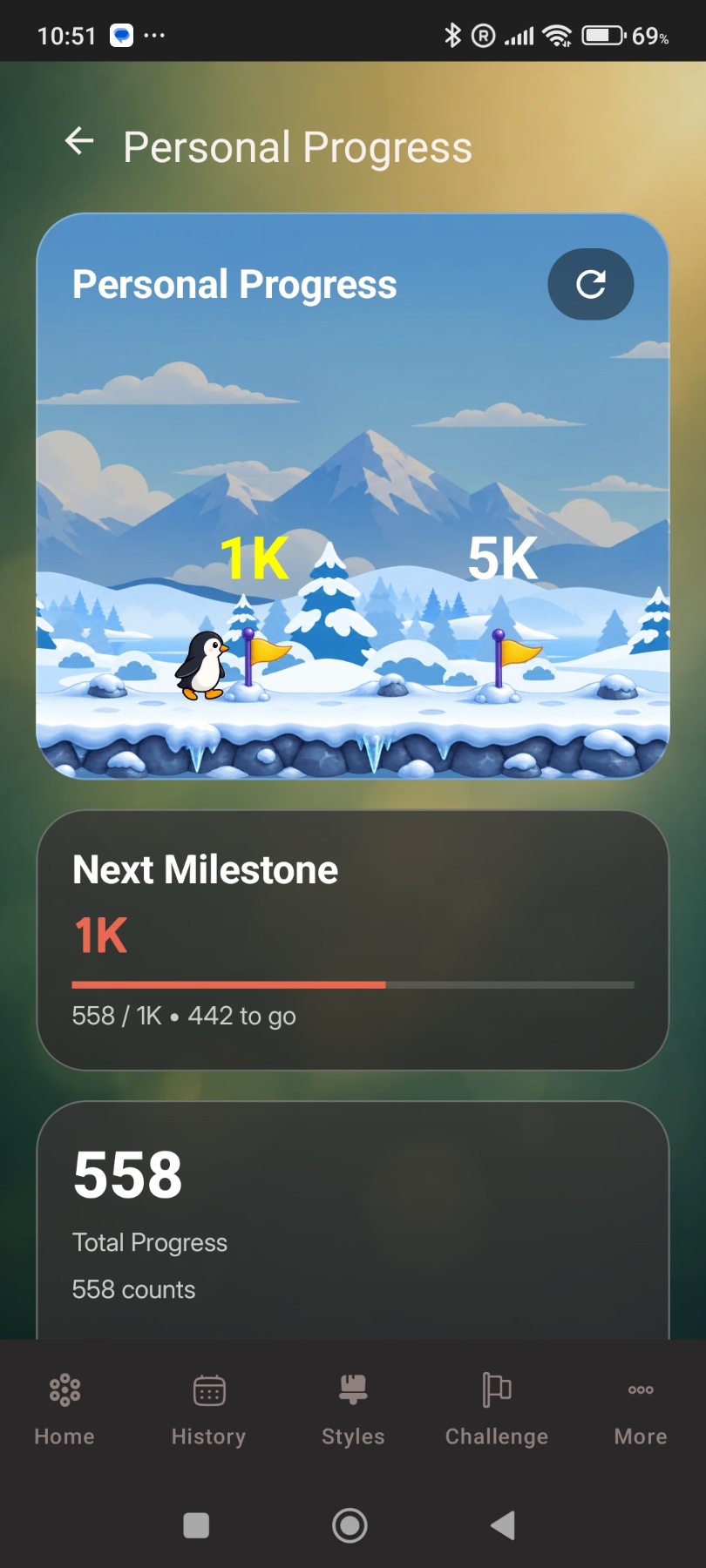
The summary view helps users understand progress without digging through every individual count.

  1. Scan recent progressLook for completed days, target movement, and streak continuity.
  2. Choose the next targetUse the summary to decide where to continue.
iOS journey summary screenAndroid journey summary and daily progress screen

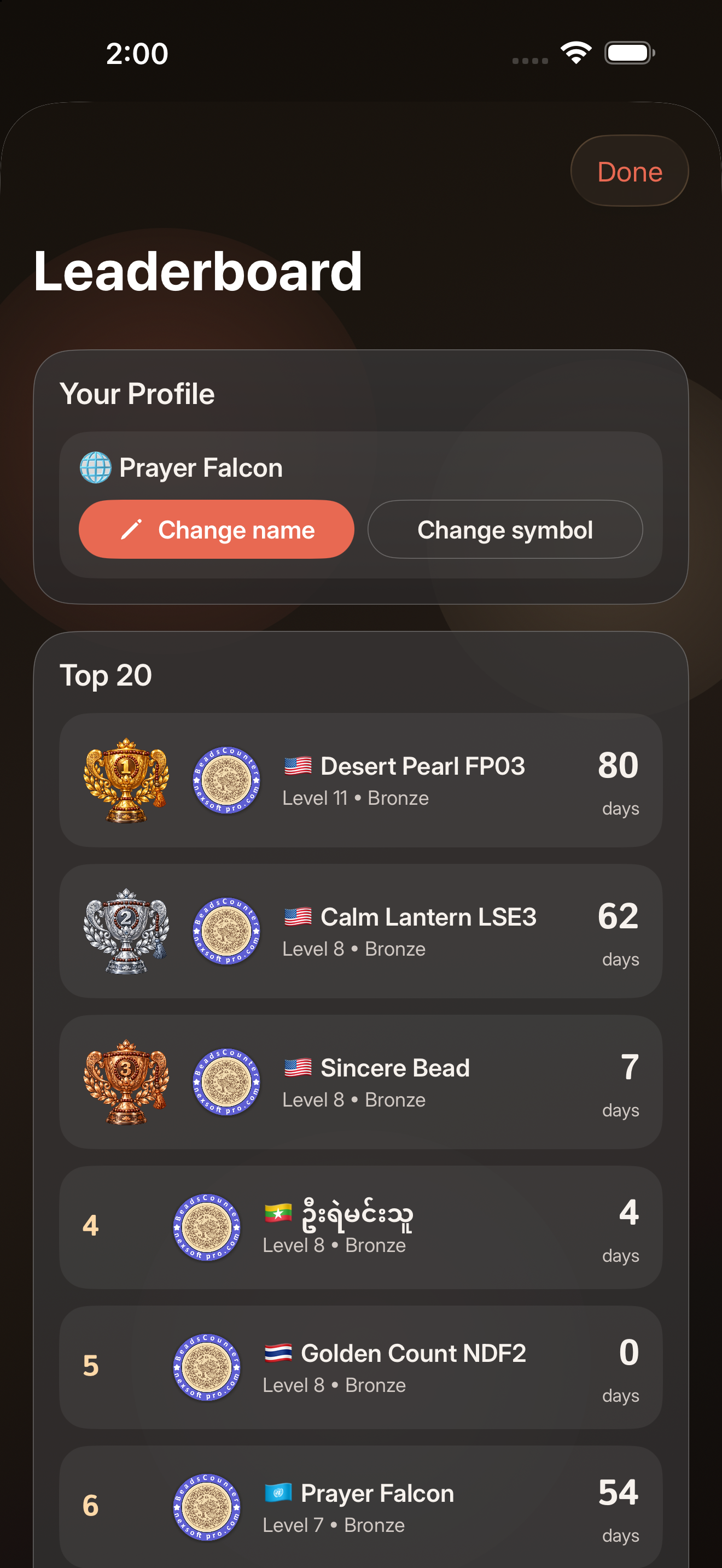
Global Leaderboard

Compare public progress respectfully.

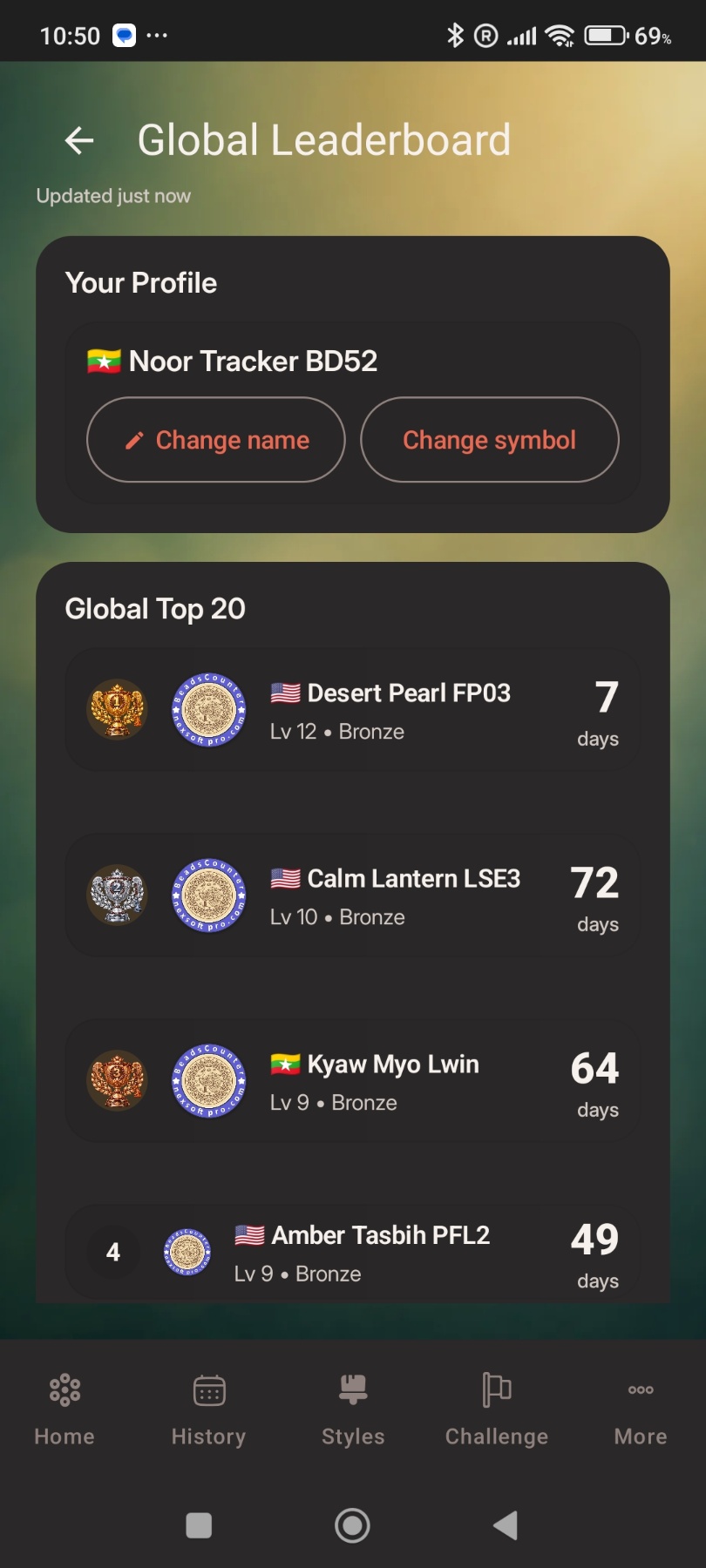
The leaderboard uses public symbols and display names with level, badge, and streak. It is meant to encourage continuation, not distract from practice.

  1. Check the top threeThe podium highlights the leading public users.
  2. Open full resultsUse the leaderboard page for more rankings.